
Want a quick gut check before you price a collectible or close a deal? SnapSale can show a current PriceCharting market price right where you’re already working—in Price Checker and directly on items in your Sell and Buy/Trade carts.
Market Price is a reference point, not a rule. Your asking price, purchase cost, discounts, and final deal are still yours to set.
What Market Price shows you
When an item has a confirmed product match and a compatible price is available, SnapSale shows:
- The matched product title and price dimension, such as PSA 10, raw, or sealed
- The current PriceCharting market price and a freshness indicator
- Your asking price and its percentage above or below the market price
- Recent daily price history when enough snapshots are available
- A link to the matching PriceCharting product page
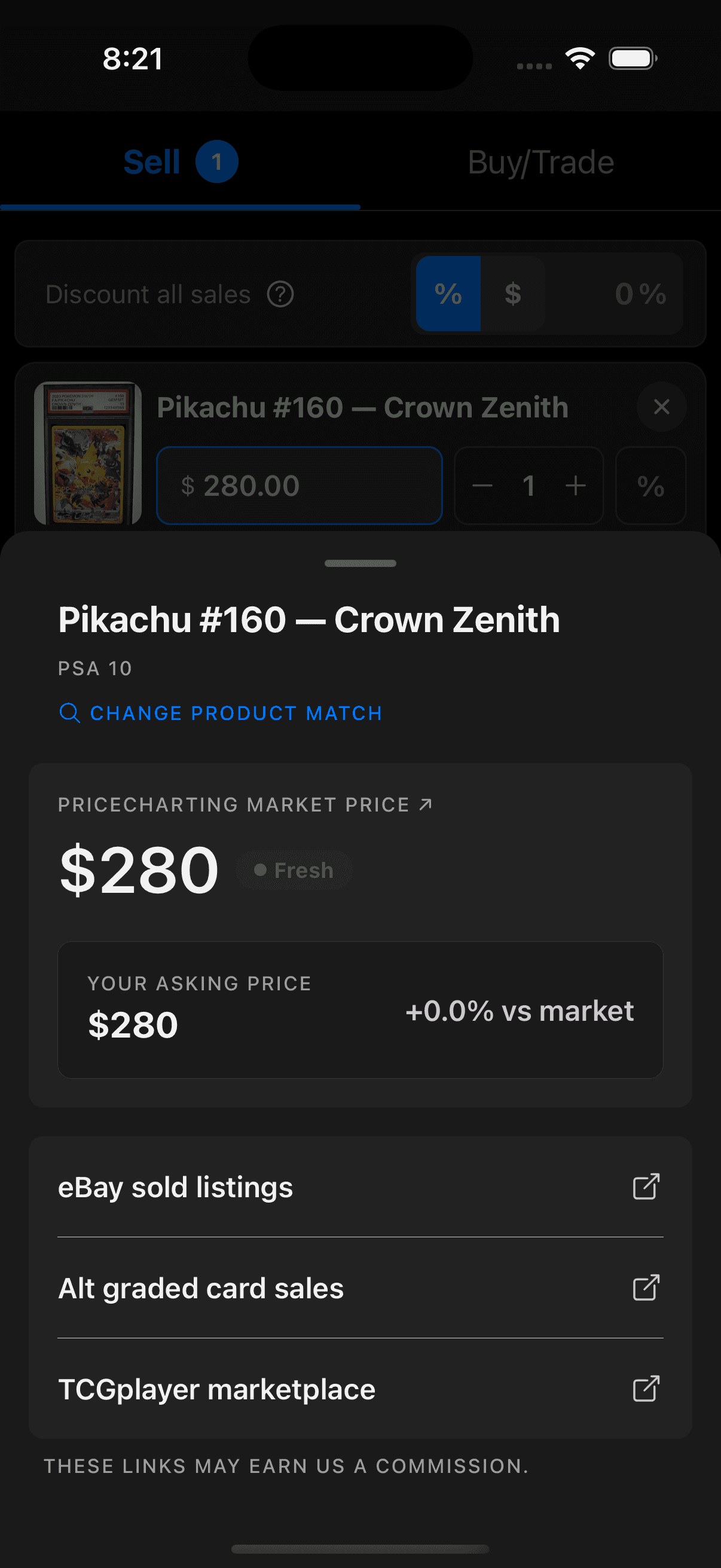
Open the full Price Checker
Tap the Market Price row on a cart item, or open Price Checker from an inventory item. The panel gives you the full market view, including your asking-price comparison, available history, and the research links you’ve enabled.
If the product match is wrong, choose Change product match. You can also clear the match without deleting the item or replacing your own inventory details. Swipe down on the panel when you’re finished.
Market Price in your carts
Matched items show a compact Market Price row right inside the Sell or Buy/Trade cart. You can see the provider, current price, and relevant grade or condition without leaving the deal.
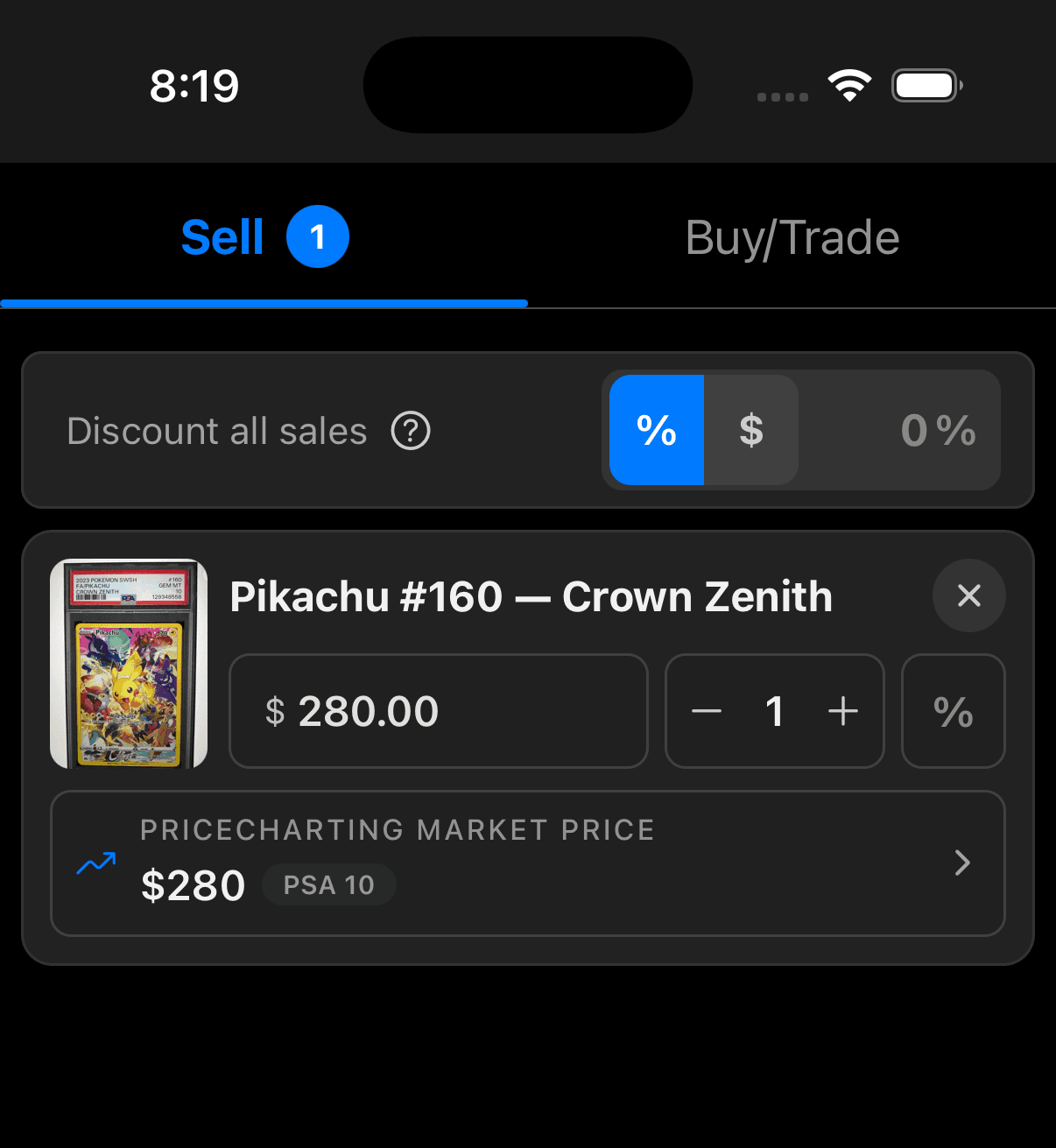
Your editable item price stays separate. Tap the Market Price row when you want the full comparison and history; keep working normally when you don’t. Discounts still apply to your item or cart price—not to the market reference.
When a market price isn’t available
You may not see a market price when the item is unsupported or unmatched, there isn’t a compatible price for its grade or condition, the latest price is stale, the provider or network is unavailable, or your account doesn’t have access to Market Price.
That won’t stop the sale. You can still set your own price, use your enabled research links, and complete checkout without a product match or market price.
Choose your Price Checker settings
You can decide how SnapSale turns market prices into suggestions and which external research shortcuts appear in Price Checker. These preferences are saved on your device.
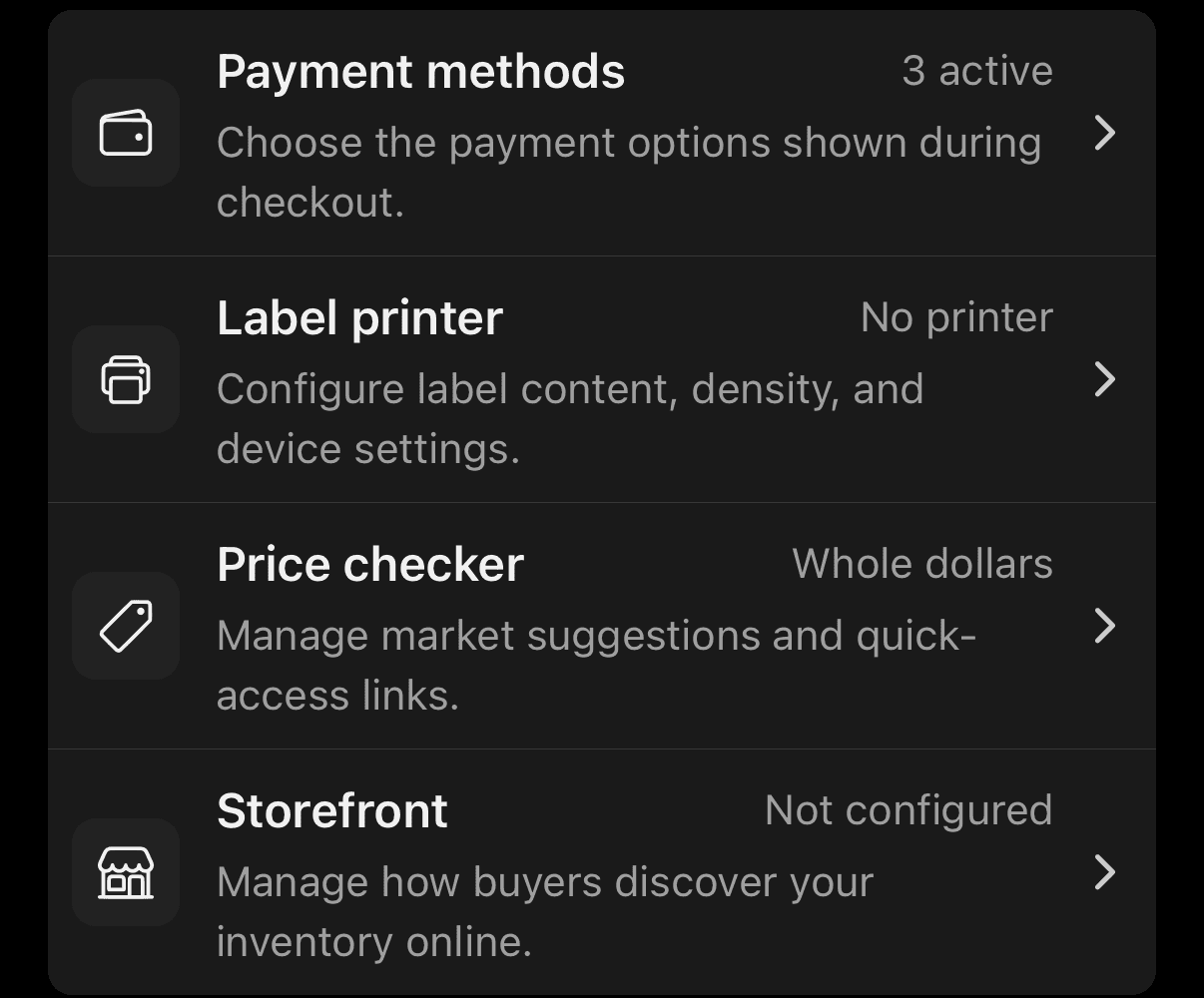
- Open the Settings tab
- Under Selling, select Price Checker
- Choose whether market-based suggestions should be rounded to the nearest whole dollar
- Turn each external research source on or off
- Select Save settings
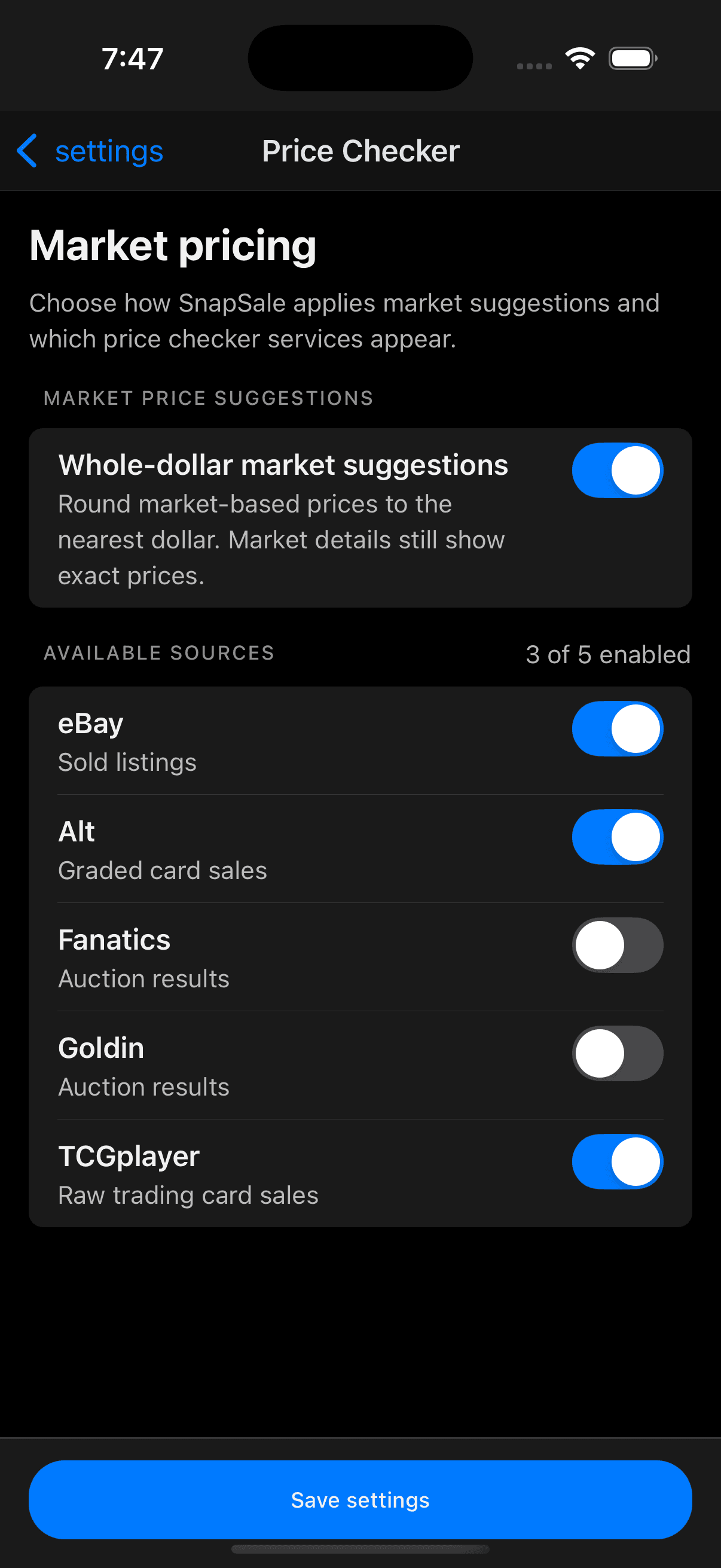
Whole-dollar suggestions
Turn this on if you prefer clean whole-dollar suggestions. SnapSale rounds the suggested price to the nearest dollar, while the full Market Price details still show the exact source amount. It won’t change a price you’ve already entered.
Choose your research links
Enabled sources appear below the Market Price details for a quick second opinion. Each link opens the external service, so double-check that its results match your exact item.
eBay
Opens sold listings. When grading details are available, SnapSale adds them to the search to give you a better starting point.
Alt
Opens graded card sales. SnapSale may use the certification number when one is available.
Fanatics
Opens auction results using the item name as your starting search.
Goldin
Opens sold auction results using the item name as your starting search.
TCGplayer
Opens a TCGplayer marketplace search for the item name.