
Ready to label your inventory? The quickest option is to print straight from SnapSale to a nearby NIIMBOT D11 printer. You can print one label from an item’s details or select several inventory items and print them as a batch.
Need a different printer or a custom workflow? Export is still available, too. Both options create labels with the same SnapSale QR links.
What SnapSale QR labels do
- Open the matching inventory item quickly when you scan the code in SnapSale
- Add labeled inventory to the Sell cart with fewer taps
- Let customers view eligible published item details in a mobile browser
- Keep the same label when you update an item’s price in SnapSale
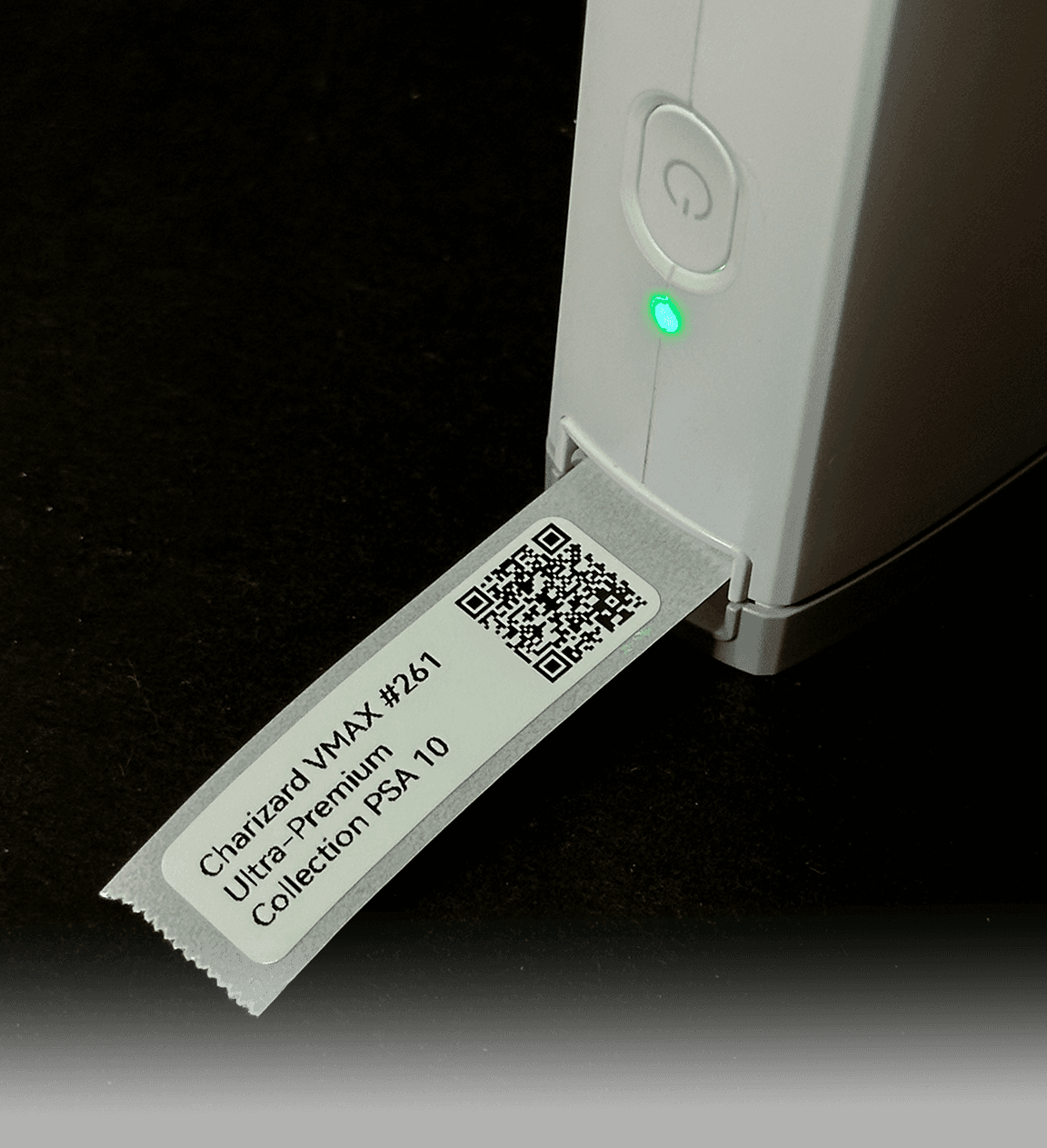
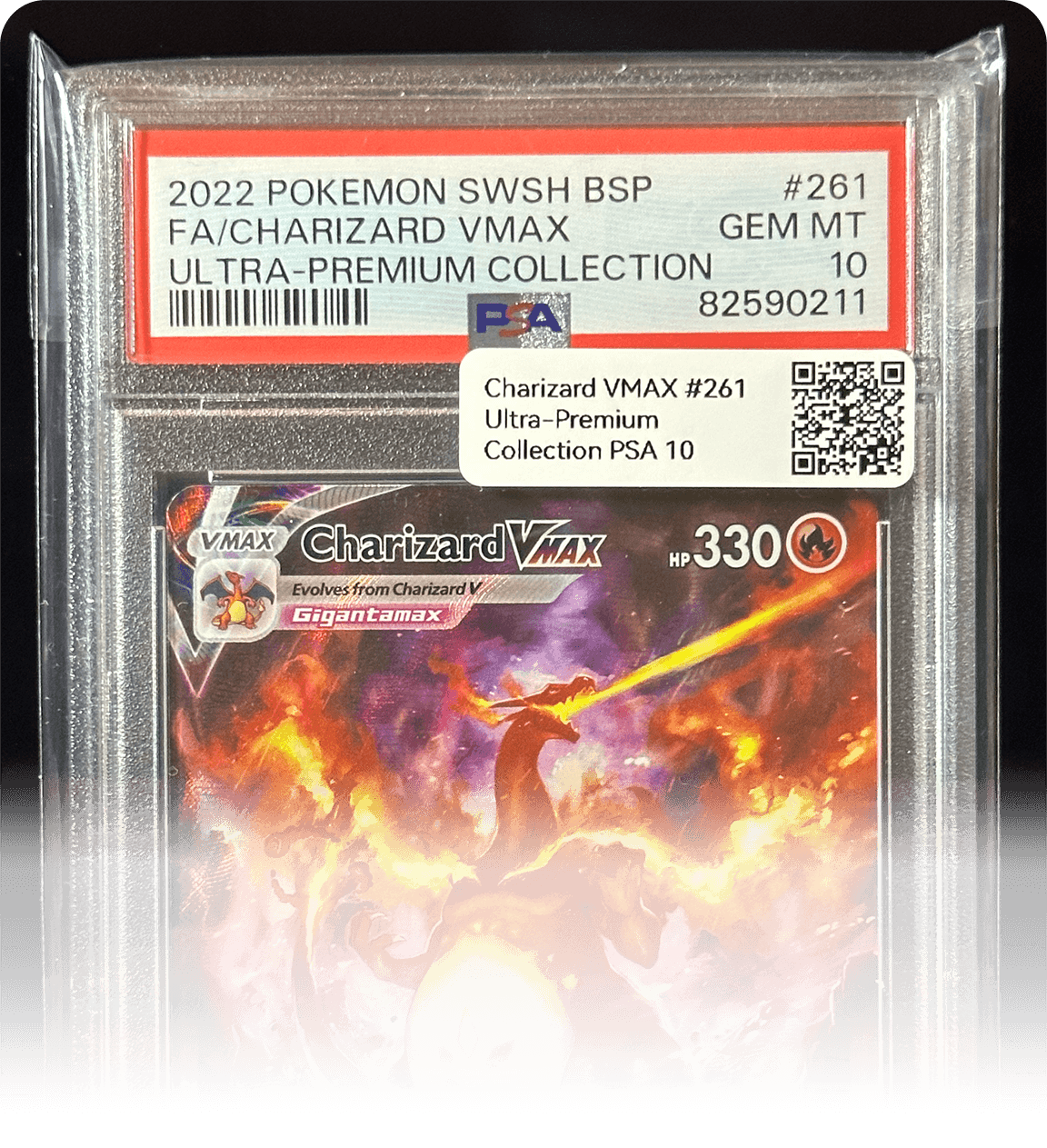
Print directly to a NIIMBOT printer
Need the printer? Here’s the NIIMBOT D11 we use. This is an affiliate link, so SnapSale may earn a commission from a qualifying purchase.
Choose your label defaults
- Open Settings in SnapSale
- Under Selling, choose Label printer
- Choose whether each label should show the item name and price
- Choose a print density from 1 to 5; density 3 is the recommended starting point
- Select Save settings
Your label defaults and remembered printer stay on this device. The QR code is always included, even if you turn the item name or price off.
Print one item
- Open the item from your Inventory tab
- Open the item actions and choose Print label
- Turn on the printer and make sure Bluetooth is available
- Select the printer when it appears, or choose Rescan
- Review the label preview and choose how many copies you need
- Select Print
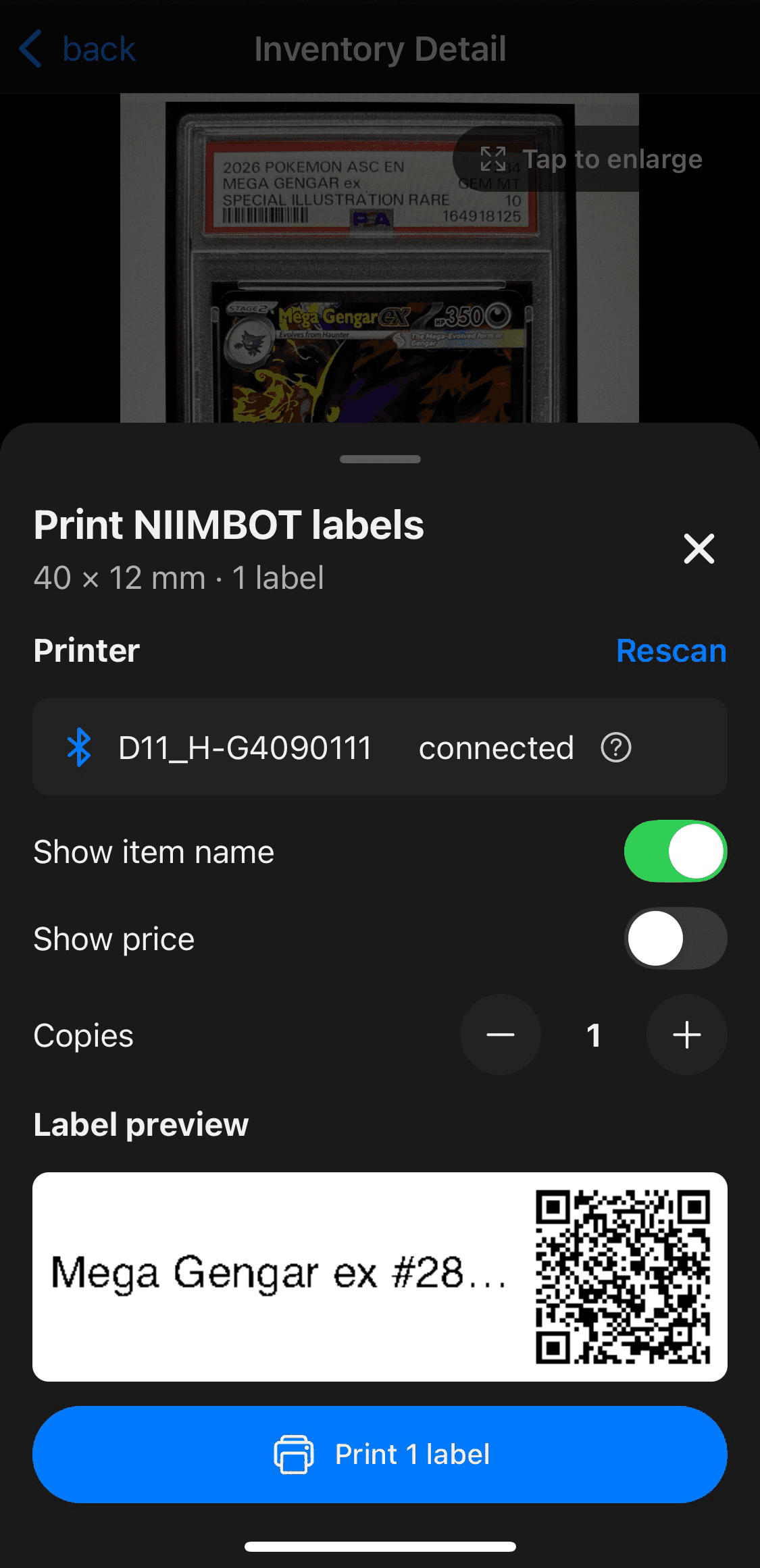
SnapSale remembers a successfully selected printer and looks for it first the next time you print. If reconnecting fails, you can scan again without losing the label job.
Print several inventory items
- Open the Inventory tab
- Select each item you want to label
- Open the actions menu and choose Print labels
- Choose or reconnect to your printer and review the job
- Select Print
Export labels instead
Export is handy when you use a different printer, build labels in another app, or want a spreadsheet for a custom label template.
- Select one or more items in Inventory
- Open the actions menu and choose Export labels
- Save or share the exported spreadsheet
- Import the file into your label software and map the fields you want to print
- Preview a test label before printing the full batch
What’s included in the export?
The export includes the item ID, title, price, and QR-code link. Your label software can use all four fields or just the title and QR link.
id	title	price	qrcode_link
2Z6MswaGArGPpxPa1zEncl Magikarp #080 SV1a PSA 10 150 https://snapsale.io?i=2Z6MswaGArGPpxPa1zEncl&u=4LLAt4ppLDF6XSpvH3Um9UScan and use your labels
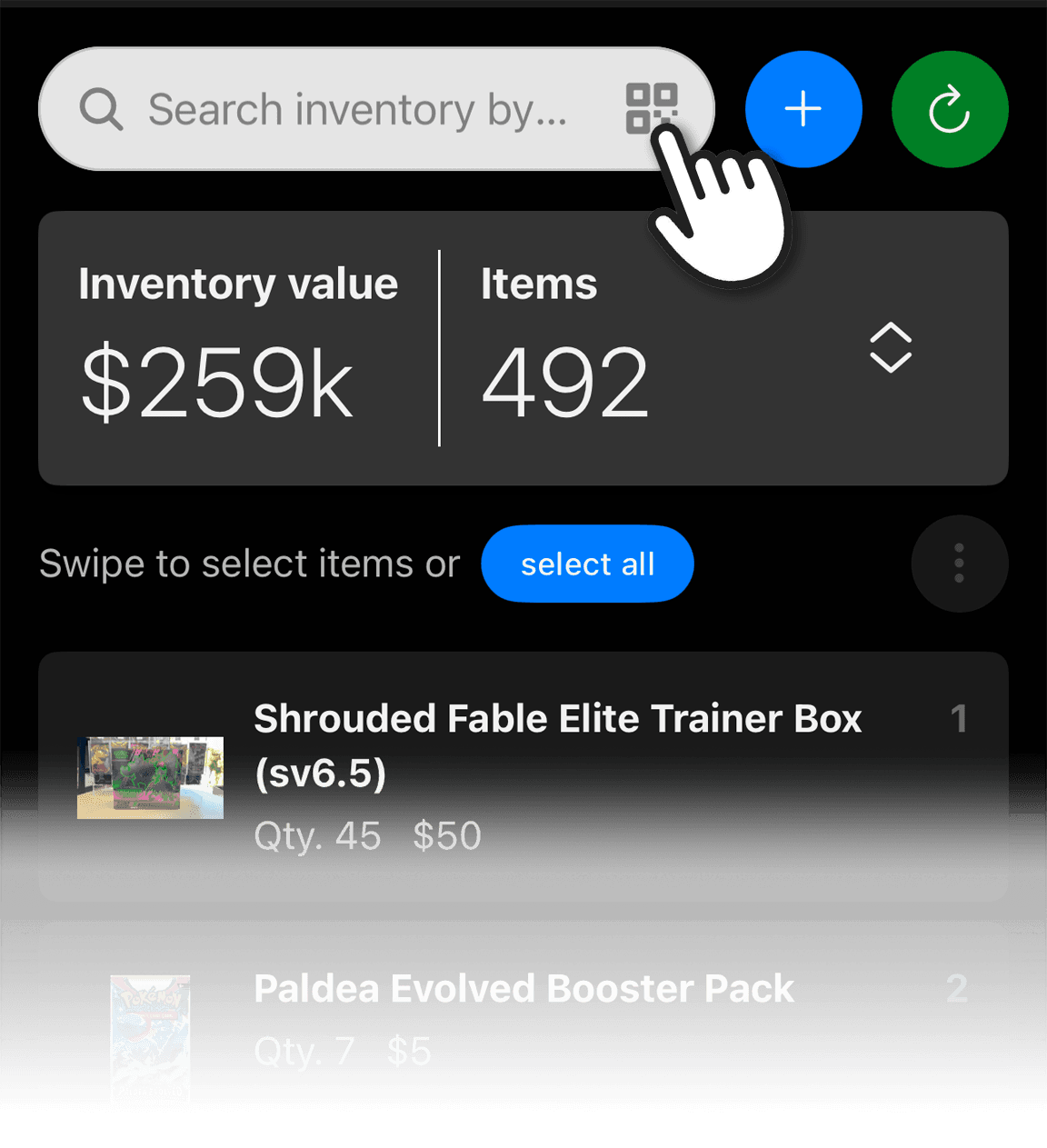
Find an inventory item
- Open Inventory
- Choose the QR scanner in the search box
- Scan the item’s label
Add an item to a sale
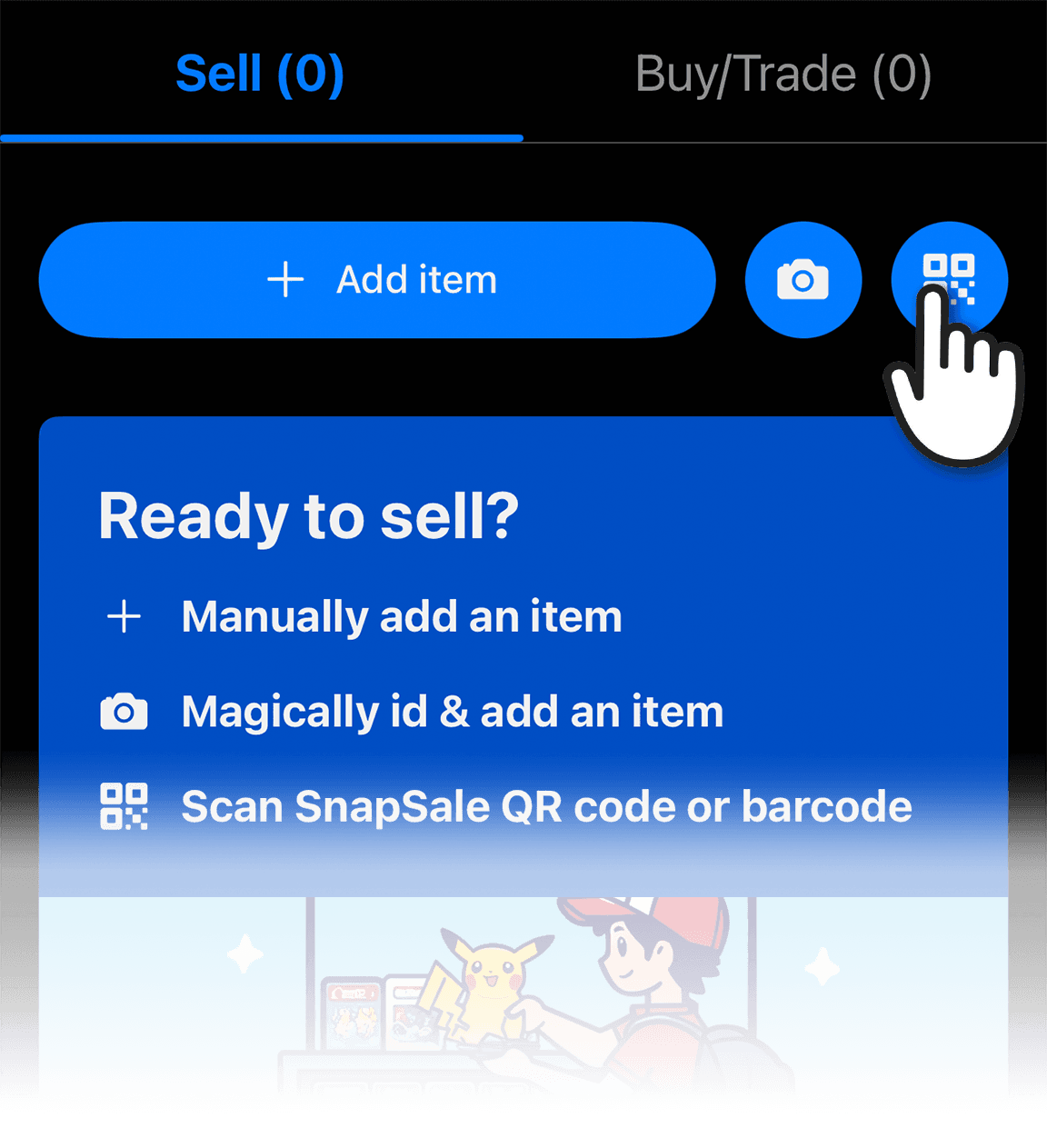
- Open the Sell cart
- Choose its QR scanner
- Scan the inventory label and continue building the sale
Let a customer check an item
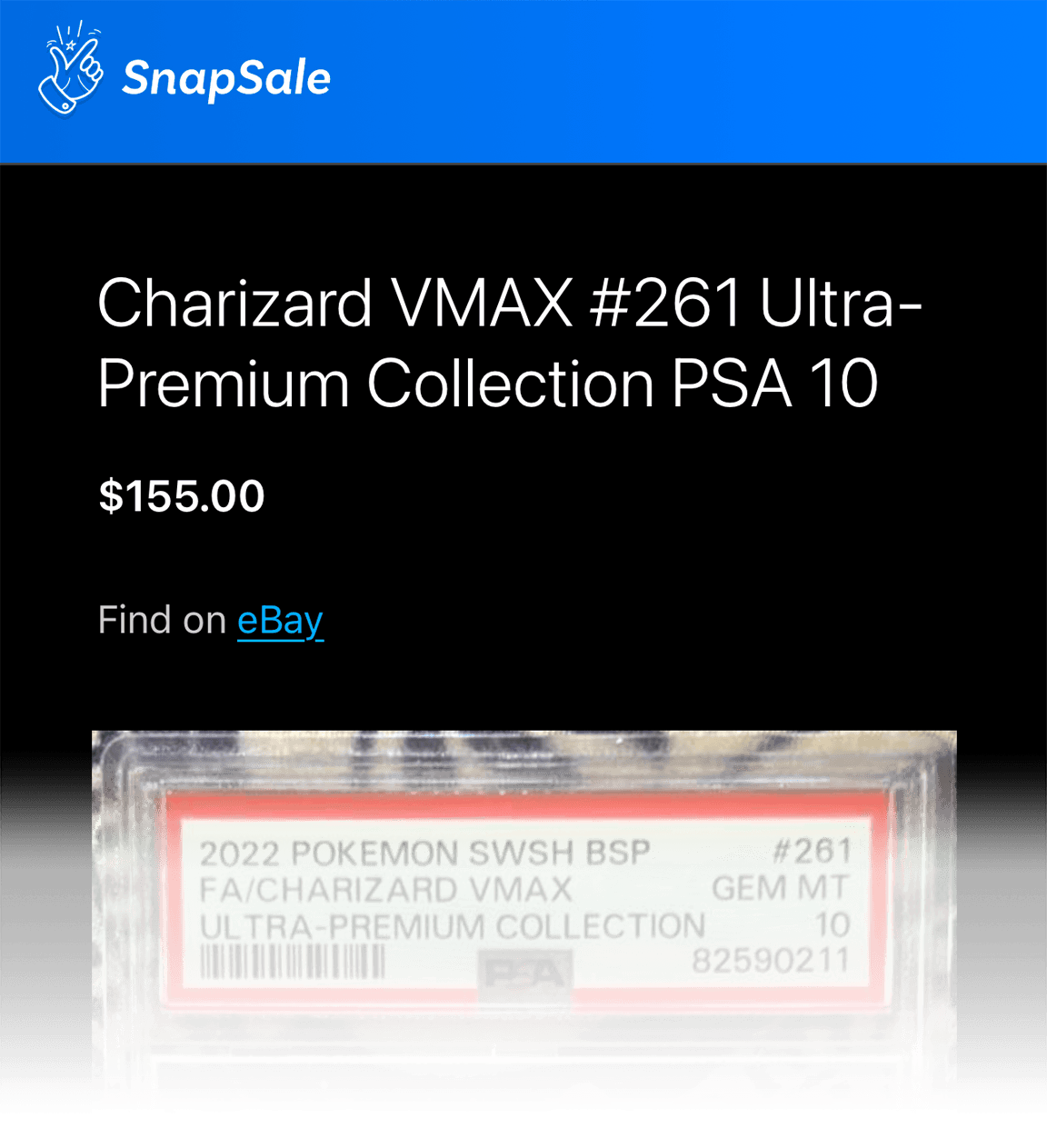
A customer can scan the label with their phone’s camera to view eligible published item details in a browser. Private inventory stays private.
Troubleshooting direct printing
- Nothing appears: make sure the printer is on, nearby, and not connected to another device, then choose Rescan
- Bluetooth is off or denied: enable Bluetooth and allow SnapSale access when prompted
- The label is too light or dark: adjust Print density under Settings → Label printer
- The wrong printer is remembered: open Label printer settings and forget it, then choose a printer during your next print
- A job fails: fix the connection or label issue and use Retry; SnapSale keeps the current job available